
English
Appearance
You can create a dedicated "App-like" experience on a mobile device by setting up a specific dashboard for the Dreame Vacuum Card and adding it directly to the phone's home screen with its own app icon.

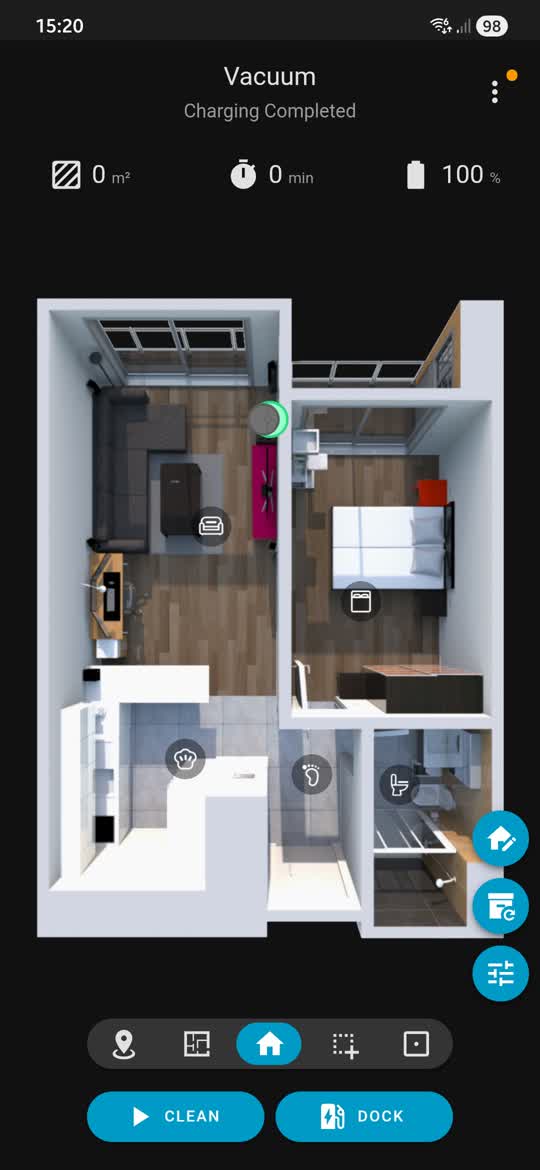
To keep things organized and full-screen, it is highly recommended to create a completely separate dashboard specifically for the vacuum.
mdi:robot-vacuum, and a URL, such as l10s-gen2, are provided.A "Panel" view forces a single card to stretch across the entire screen, which is perfect for this highly detailed map card.
sections type view initially, which cannot be converted into a Panel. The Edit () icon next to the default tab is clicked, Delete View is selected from the dialog, and the removal is confirmed.vacuum.l10s_gen2, is selected. An optional custom Title for the card can be provided, and more detailed mobile-specific configurations can be set up by referring to the Basic Configuration section.NOTE
This step is entirely optional, but it is an absolute necessity for achieving a native-app like experience.
To make it look like a real standalone app, the Home Assistant top header and side menu must be hidden.
Since the original kiosk mode plugin was archived, the community maintains an actively supported fork. Using the NemesisRE/kiosk-mode integration is highly recommended.
https://github.com/NemesisRE/kiosk-mode is added with the category set to Lovelace.Once installed, the raw dashboard configuration can be edited to completely hide the UI elements.
kiosk_mode:
  kiosk: true
TIP
Once the header is hidden, the Edit button will no longer be visible. If the card configuration needs to be edited, ?edit=1 can simply be added to the end of the dashboard URL in the web browser, such as http://homeassistant.local:8123/l10s-gen2?edit=1.
Once the full-screen, headerless dashboard is ready, it can be added to the mobile device as a dedicated home screen shortcut. Launching this shortcut instantly opens the full-screen Dreame Vacuum control panel, completely bypassing the normal Home Assistant interface, with instant loading. The back button will work exactly as it would in the official App and can be used to navigate back or close settings and dialogs.
The official Home Assistant Companion App must be downloaded from the Google Play Store.
/l10s-gen2, is entered.mdi:robot-vacuum, is chosen.NOTE
For more details on managing Android shortcuts, refer to the official Home Assistant Companion App Android Shortcuts documentation.
The official Home Assistant Companion App must be downloaded from the Apple App Store. On iOS devices, the built-in Apple Shortcuts app is used alongside Home Assistant URL schemes to create the home screen icon.
homeassistant://navigate, followed by the dashboard path, such as homeassistant://navigate/l10s-gen2.NOTE
For more details on iOS URL schemes, refer to the official Home Assistant URL Handler documentation.