
English
Appearance
This guide explains how to get the Dreame Vacuum Card running on the Home Assistant dashboard. It covers the prerequisites for the integration, steps to add the card to existing dashboards and instructions for setting up the recommended Panel Mode. Panel Mode provides the best possible experience by utilizing the full screen, making it especially powerful on tablets and desktop monitors.
The Dreame Vacuum Card is tightly integrated as a core part of the Dreame Vacuum Home Assistant integration. It is not a standalone card that is installed separately.
To use this card, the dreame_vacuum integration version v2.0.0 or higher, which includes the card built-in, must be installed.
Prerequisite
If the Dreame Vacuum integration is already installed, this step can be safely ignored.
If it is not installed yet, the easiest way to get it is through HACS. The Dreame Vacuum integration can be searched for under HACS > Integrations and version v2.0.0 or higher downloaded. Home Assistant must be restarted after downloading. Once the integration is set up, the card will be automatically available for the dashboards.
Entity Optimization
The card is designed to operate using only the vacuum, sensor.cleaning_history, sensor.cruising_history and camera.map entities. It gets everything it needs directly from these four core entities. As a result, all other entities from the device page, including saved map entities, can be safely disabled to keep the Home Assistant clean.
To further reduce the load on the Home Assistant instance by turning off server-side image generation, the camera.map entity can be disabled and the camera.map_data entity enabled instead. The card will automatically detect this and display all maps directly within the browser. At a bare minimum, the card can function with just the vacuum entity enabled. Although the map will not be drawn in this state, all non-map-related features, such as cleaning settings, dock actions and basic controls, will remain fully accessible and usable.
To add the Dreame Vacuum Card to the Home Assistant dashboard:
vacuum.l10s_gen2, is selected.For the best user experience, especially given the extensive map editor and features of the Dreame Vacuum Card, using Home Assistant's Panel Mode is highly recommended. Panel Mode allows a single card to occupy the entire screen of a dashboard view.

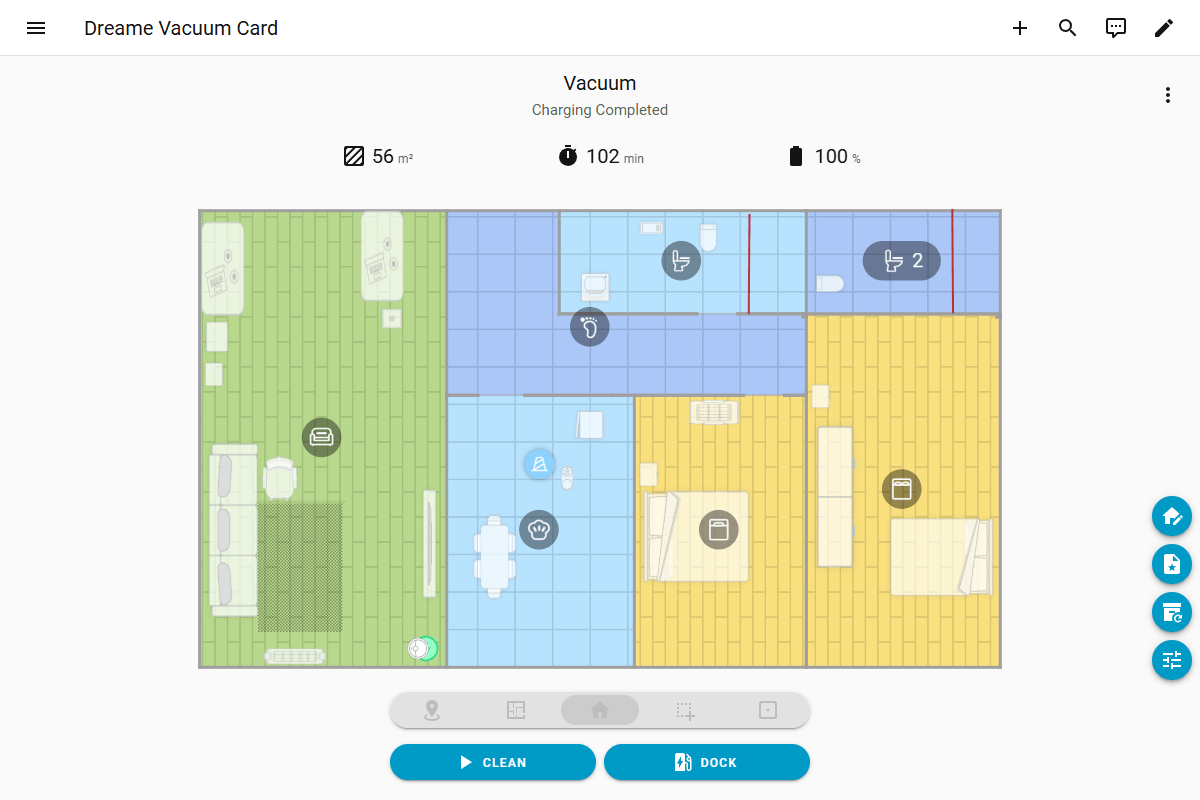
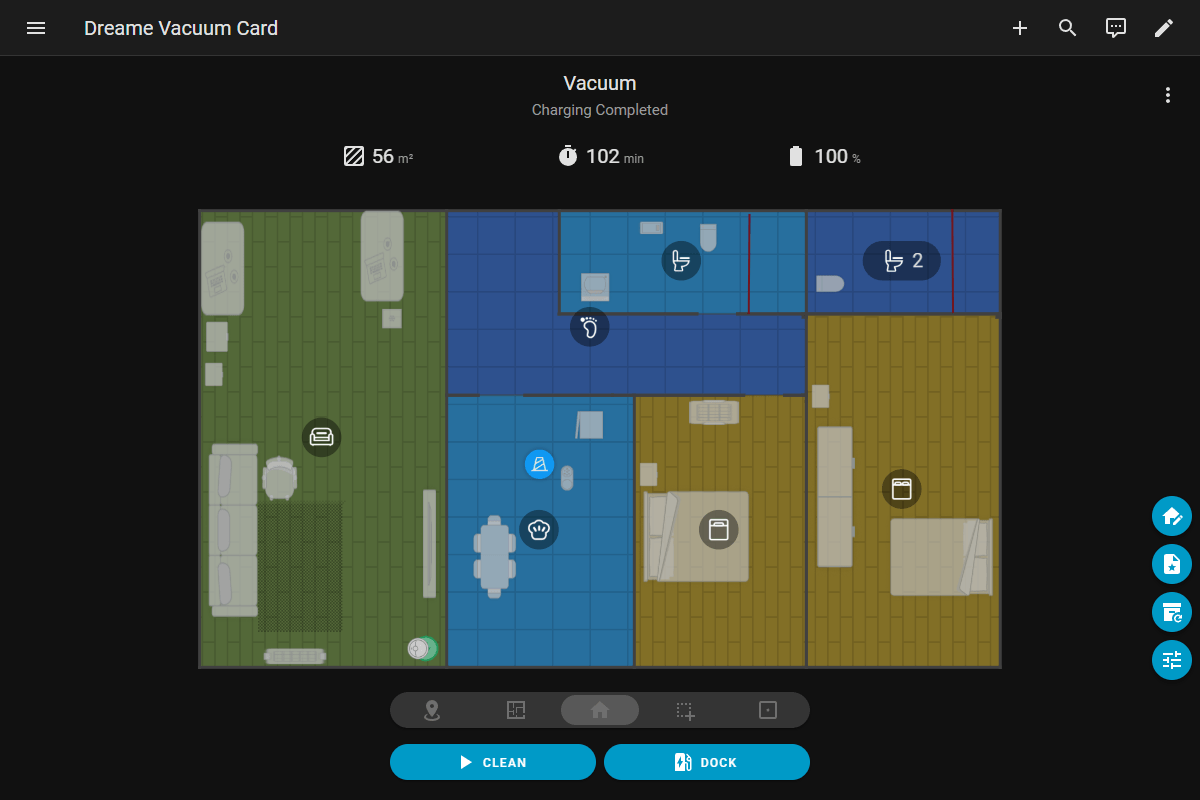
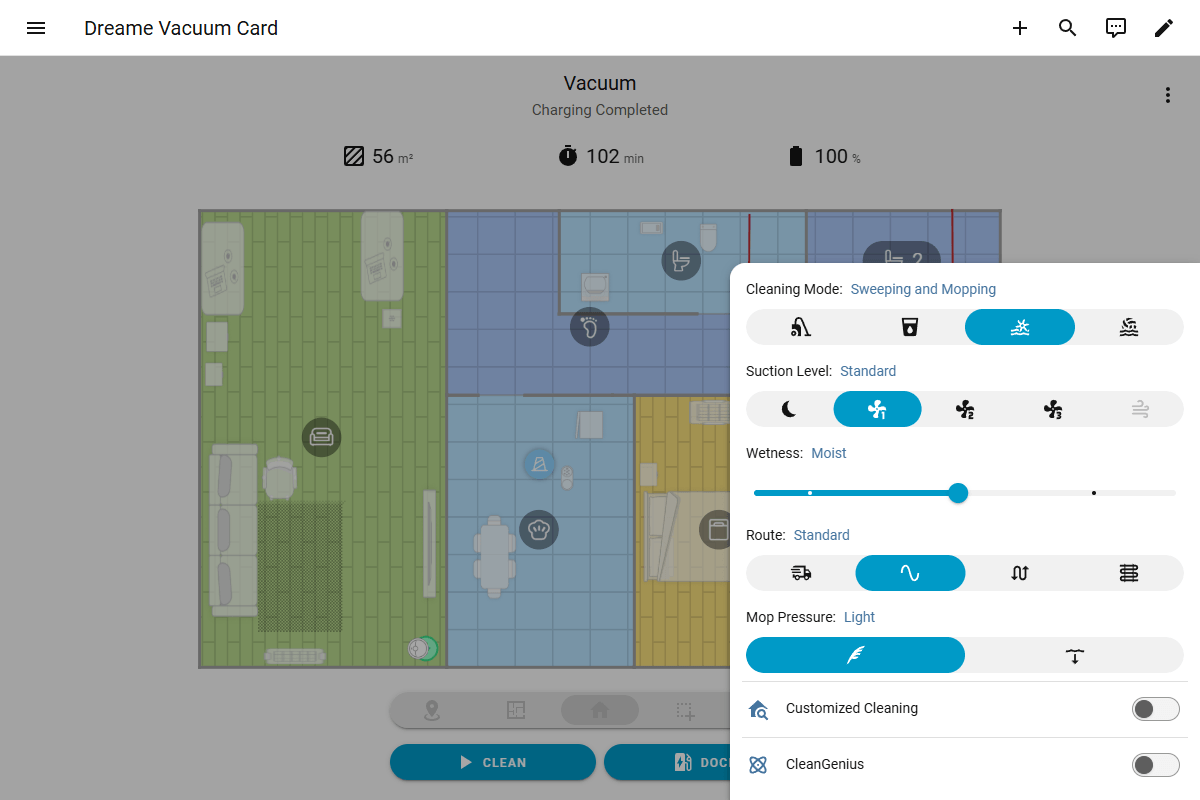
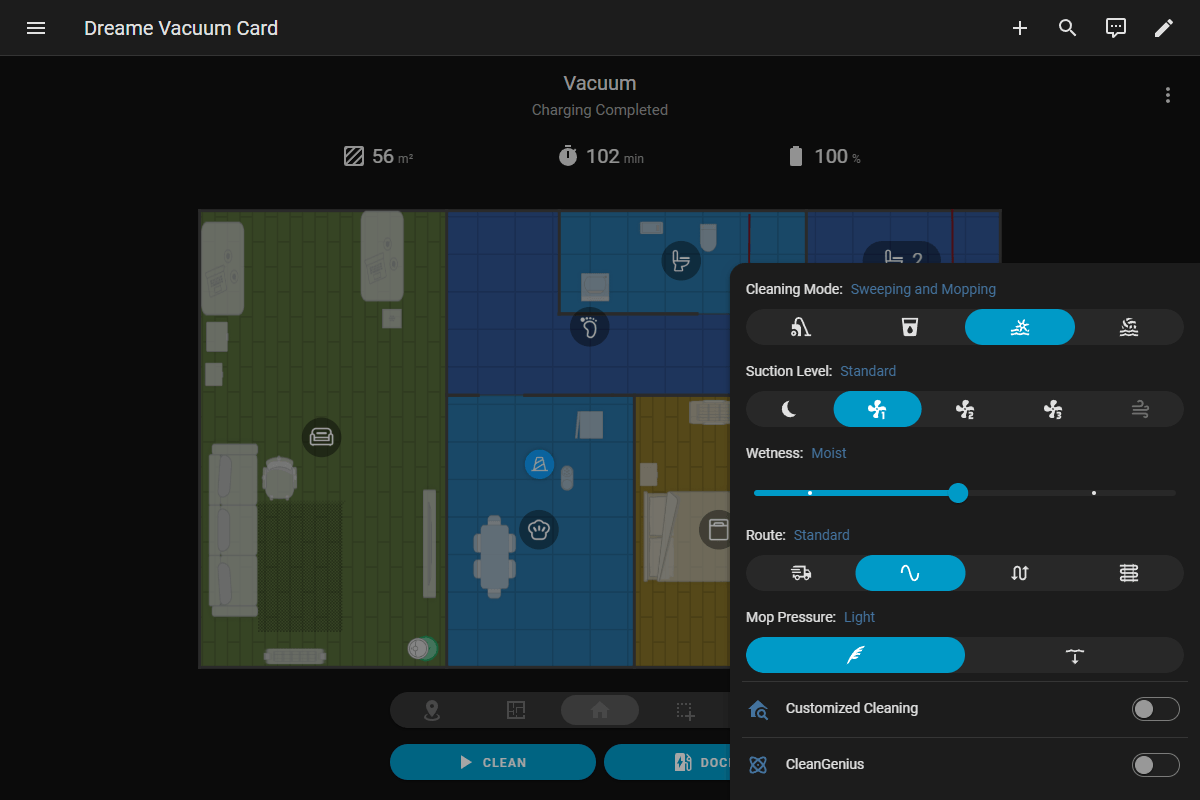
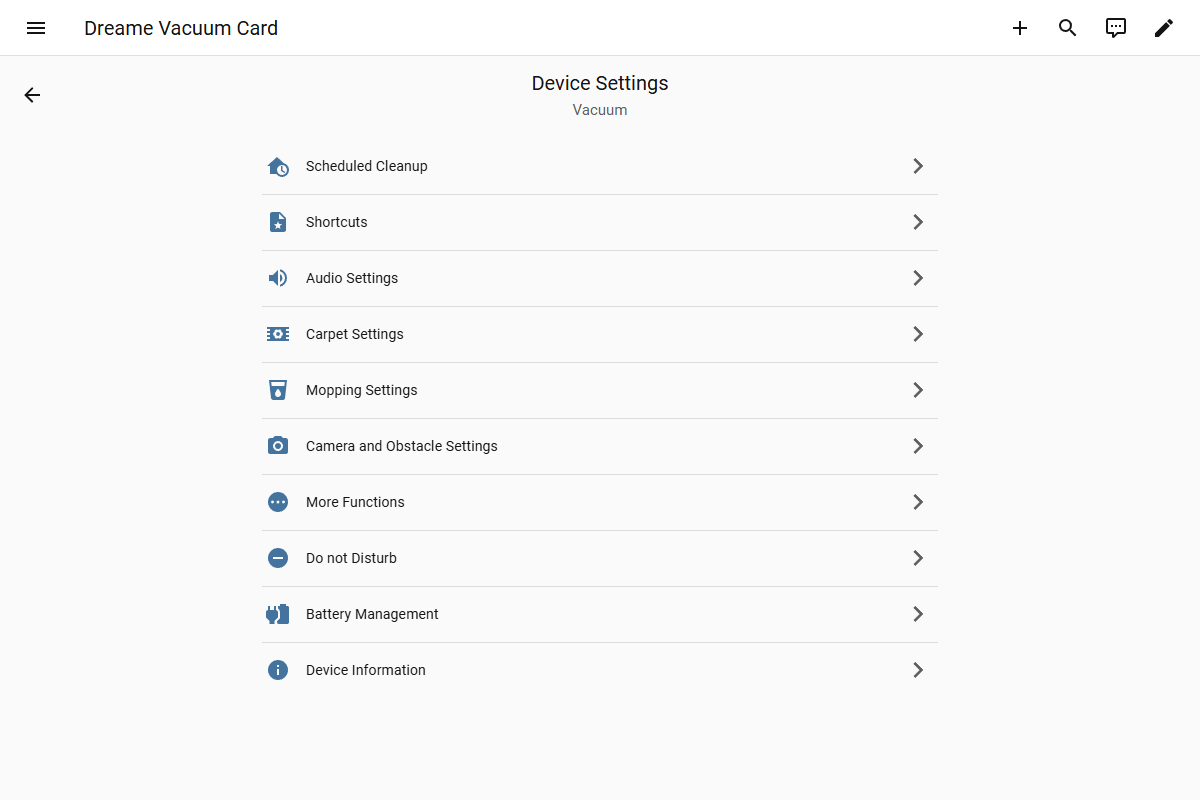
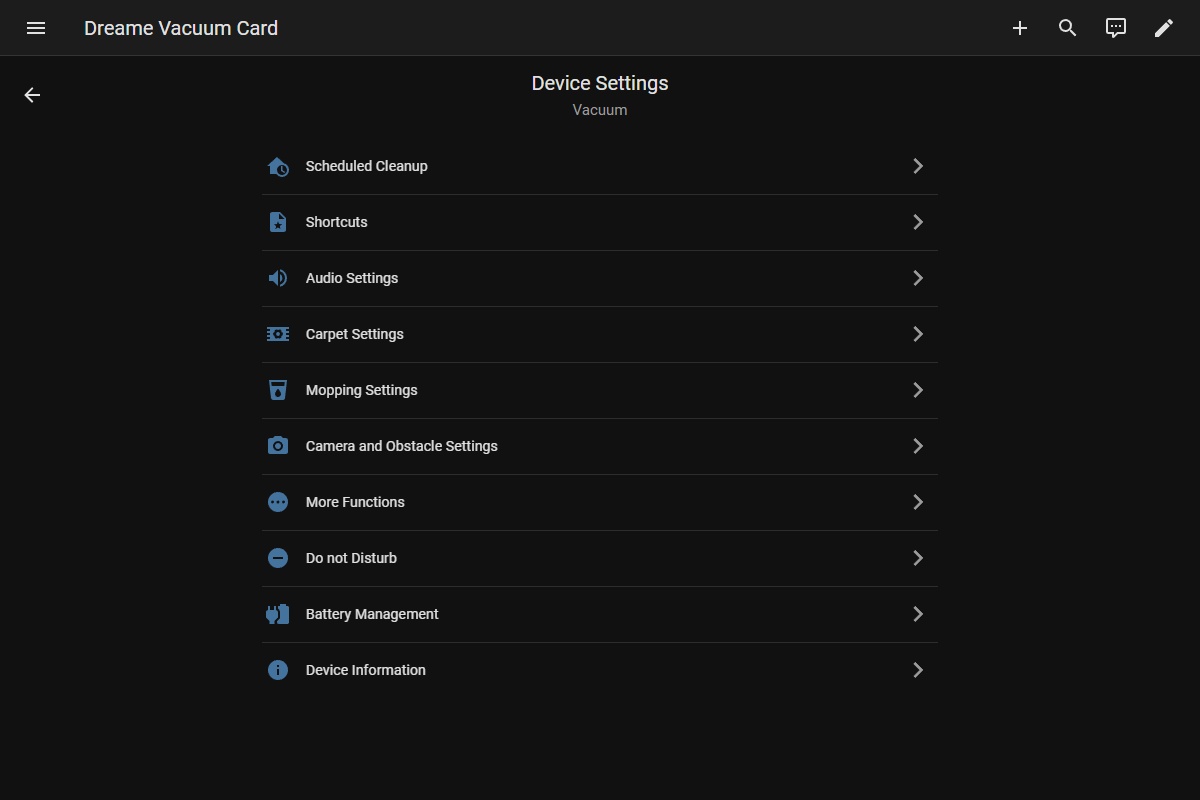
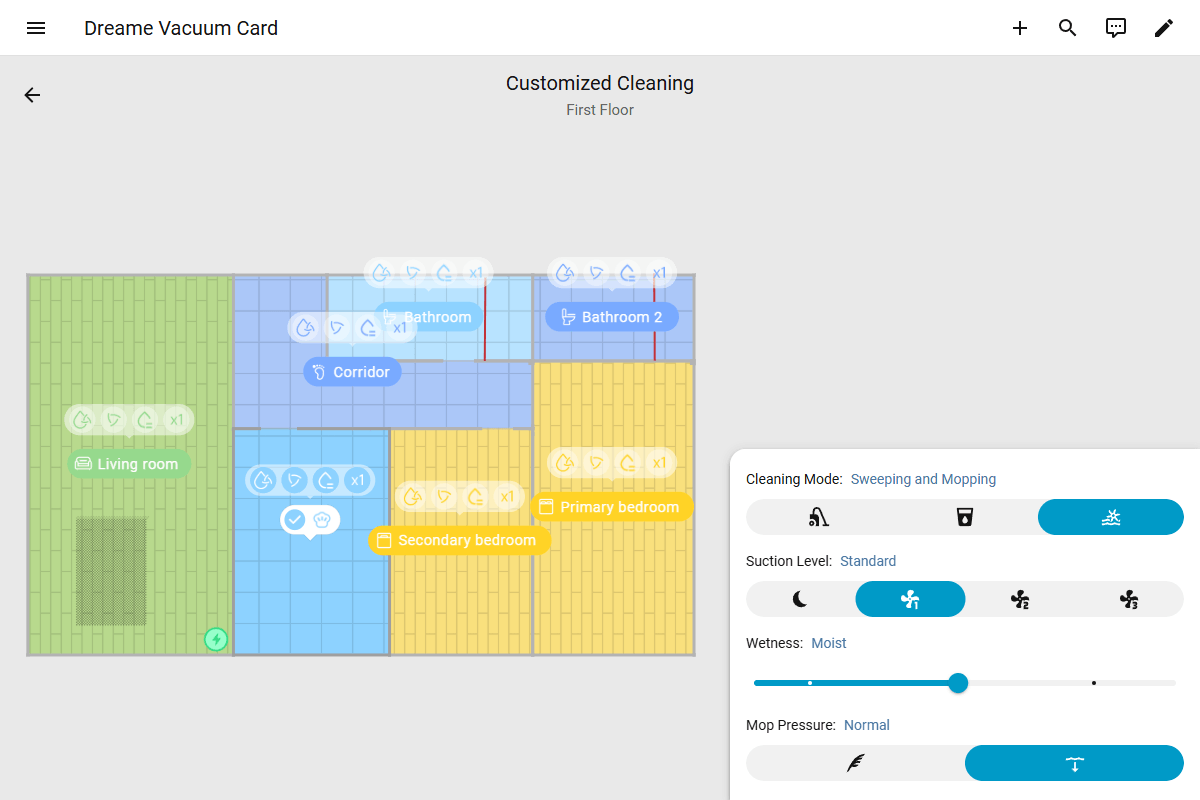
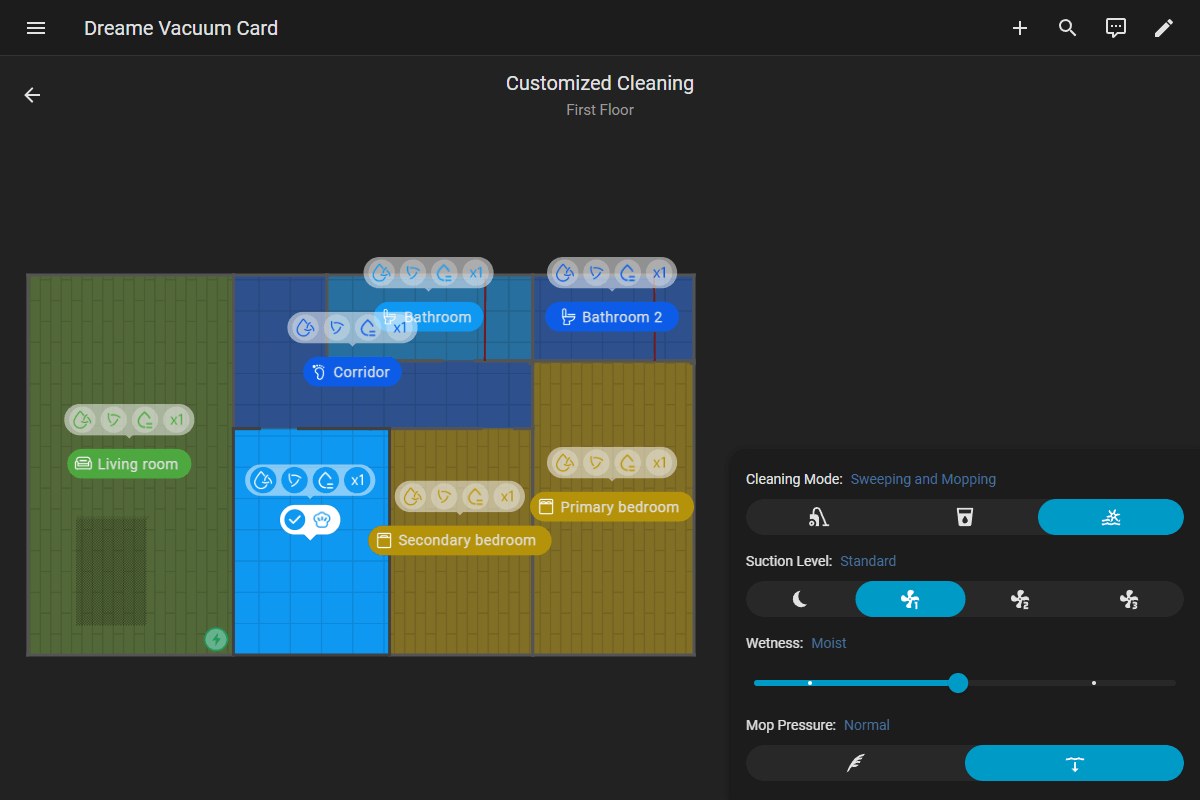
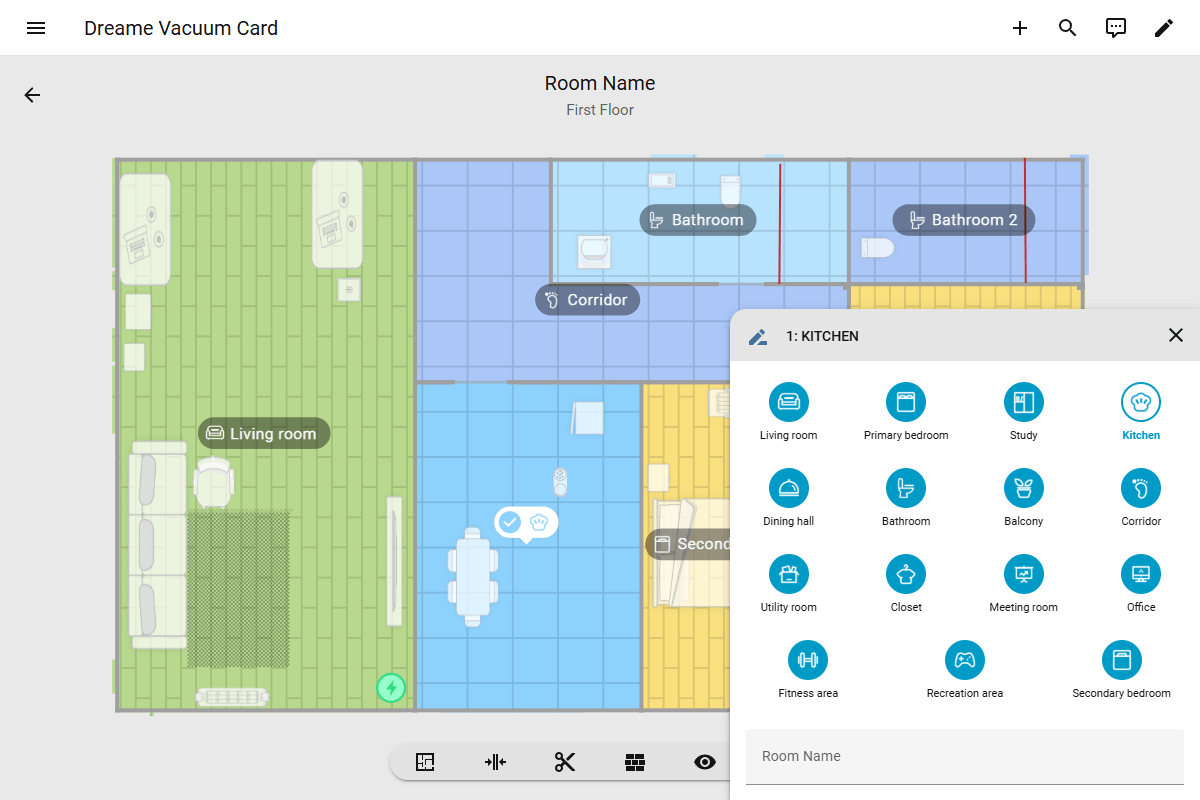
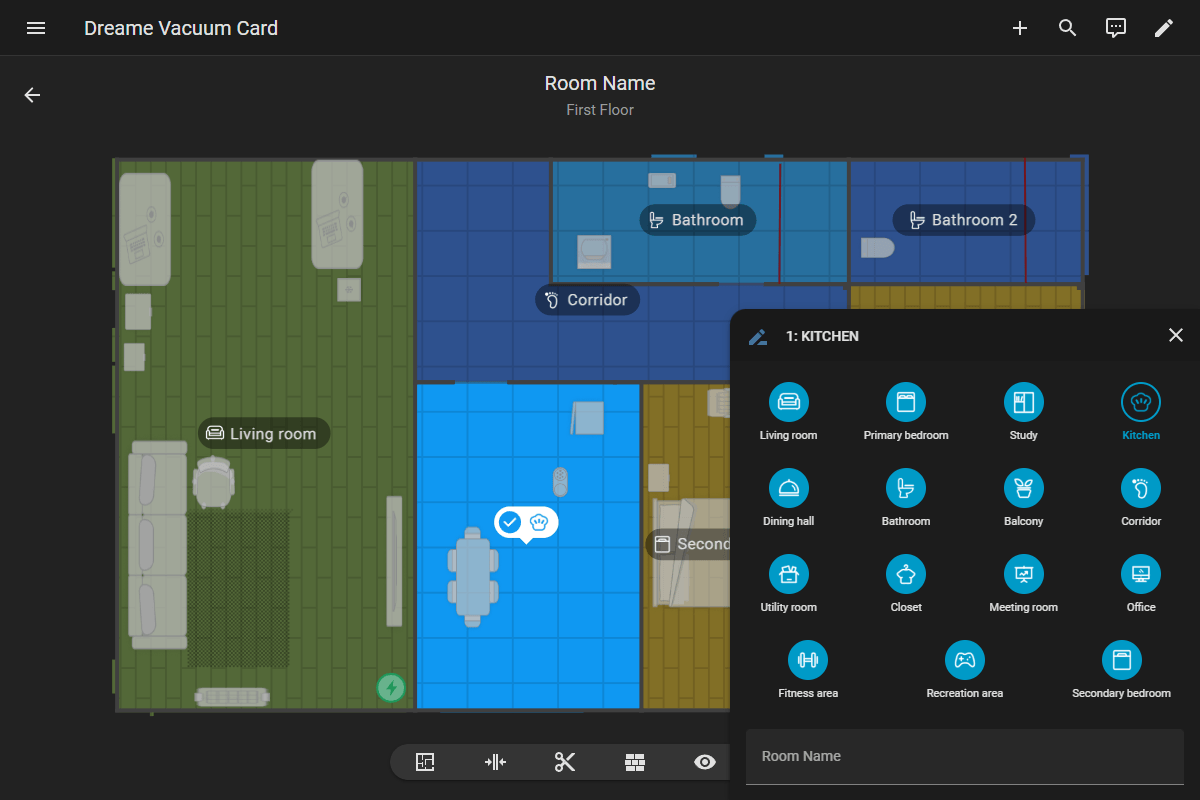
The card automatically detects when it is placed in a panel view and removes its background color and outer borders to blend seamlessly with the dashboard theme. Furthermore, all internal UI elements are completely panel-aware and will adapt their layouts to utilize the expanded screen space.
mdi:robot-vacuum, are provided.vacuum.l10s_gen2, is selected.Native Browser Navigation
When used in Panel Mode or when it is the only card in a view, the card natively handles browser navigation. The device's physical Back button or swipe gestures can be used to close dialogs, dismiss menus, or navigate back, acting exactly like the card's own back button. This is especially useful on mobile devices. To maintain a stable user experience, the card only intercepts "back" actions and does not handle "forward" navigation.